21 Best Email Tools With Visual Workflow Builders (2026)

A visual workflow builder lets you design email automation as a flowchart. Drag in triggers, add email steps, set delays, create branches based on user behavior, and see the entire sequence at a glance. It's the difference between writing automation logic in your head (or a spreadsheet) and seeing it on screen.
Not every team needs one. Simple linear sequences (send email, wait, send next email) don't need a visual builder. But the moment you add branching logic (if user opened, send A; if not, send B), a visual builder becomes valuable. And for complex multi-step automations with multiple branches and conditions, it's essential.
Visual workflow builders matter most when your automated email sequences get sophisticated. If you're running multiple lifecycle stages with branching paths, a visual canvas keeps everything comprehensible. Here's which email tools have the best visual workflow builders.
What Makes a Good Visual Workflow Builder?
- Drag-and-drop: Build workflows by dragging elements onto a canvas
- Branching: If/else logic based on user behavior, attributes, or engagement
- Multiple triggers: Start workflows from events, segments, tags, or time-based rules
- Wait steps: Delay for a set time or until a specific event occurs
- Exit conditions: Automatically remove users when they meet certain criteria
- Testing: Preview workflow paths, test with sample users
- Analytics: See how many users are at each step, conversion between steps
- Performance at scale: The builder should remain responsive even with complex workflows and thousands of active users
Quick Comparison
| Tool | Best For | Starting Price | Free Tier | Builder Quality |
|---|---|---|---|---|
| Sequenzy | SaaS sequence automation without canvas complexity | $29/mo | Yes | Simplified - sequence-based |
| Customer.io | Most flexible canvas-based builder | $100/mo | No | Excellent |
| ActiveCampaign | Intuitive builder with CRM integration | $29/mo | No | Very Good |
| Braze | Enterprise multi-channel canvas | Custom | No | Very Good |
| Iterable | Growth team cross-channel workflows | Custom | No | Good |
| Klaviyo | E-commerce flows with revenue tracking | $20/mo | Yes | Very Good |
| Mailchimp | Simple accessible automations | $13/mo | Yes | Basic |
| HubSpot | CRM-driven workflow automation | $20/mo | Yes | Very Good |
| GetResponse | Webinar + email workflow builder | $19/mo | No | Good |
| Drip | E-commerce workflow with purchase triggers | $39/mo | No | Good |
| Omnisend | E-commerce multi-channel workflow | $16/mo | Yes | Good |
| Encharge | Visual flows for non-technical SaaS teams | $79/mo | No | Good |
| Moosend | Affordable visual automation | $7/mo | No | Good |
| Ortto | CDP-style journey builder | $599/mo | No | Very Good |
| Campaign Monitor | Clean visual journey designer | $11/mo | No | Good |
| Dotdigital | B2B multi-channel program builder | Custom | No | Very Good |
| Klaviyo | Revenue-attributed e-commerce flows | $20/mo | Yes | Very Good |
| Act-On | B2B demand gen program builder | Custom | No | Good |
| Marketo | Enterprise engagement studio | Custom | No | Very Good |
| Pardot | Salesforce-native engagement programs | $1,250/mo | No | Good |
| MailerLite | Simple automation builder for newsletters | $10/mo | Yes | Basic |
The 21 Best Options
1. Sequenzy
Best for: SaaS teams wanting sequence automation without workflow complexity
Sequenzy takes a different approach. Instead of a blank-canvas workflow builder, it provides sequence-based automations with triggers and stop conditions. You create sequences of emails with delays, attach a trigger (event, tag, inactivity), and set an exit condition (when user gets a certain tag or triggers a certain event).
This isn't a visual workflow builder in the traditional sense. There's no drag-and-drop canvas with branching. But for SaaS lifecycle email, the sequence model covers the common cases: onboarding (triggered by signup, stops when onboarding is complete), dunning (triggered by failed payment, stops when payment succeeds), and churn prevention (triggered by cancellation tag, stops when user resubscribes).
The AI sequence builder is the closest thing to a visual design tool. Describe what you want the sequence to do, and Sequenzy generates the complete sequence with emails, delays, and stop conditions. For many SaaS use cases, this is faster than dragging nodes onto a canvas.
The philosophy here is worth considering. Many teams adopt a full visual workflow builder and then only build linear sequences with it. If your automations are fundamentally sequential (this email, then that email, then that email, with a trigger to start and a condition to stop), the sequence model gets you there faster. If you genuinely need complex branching, you need a true workflow builder.
Builder quality: Simplified. Sequence-based rather than visual canvas, but effective for SaaS use cases Pricing: From $29/month Pros: Simple to set up, SaaS-specific triggers and exits, AI-generated sequences, fast deployment Cons: No visual canvas, no complex branching, less flexible than full workflow builders
2. Customer.io
Best for: The most powerful visual workflow builder for email
Customer.io's visual workflow builder is the most flexible in the email space. It supports every trigger type (events, segments, dates, API calls), multiple branching conditions, wait-for-event steps, A/B testing within workflows, and nested workflow triggers.
The builder uses a flowchart interface where you drag steps onto a canvas and connect them. Steps include: send email, send push, wait, branch (if/else), random split (A/B), webhook, and update attribute. You can see real-time analytics at each step, showing how many users entered, how many are waiting, and how many exited.
The "wait for event" step is a standout feature. Instead of waiting for a fixed time, the workflow pauses until a specific event occurs. This is essential for event-based email automation where you want the workflow to respond to user behavior rather than arbitrary delays. For example, the workflow waits until the user creates their first project, then sends the next email. If they haven't created a project in 3 days, branch to a help email.
The nested workflow triggers are another power feature. One workflow can start another, which enables modular workflow design. You can build a "lifecycle router" workflow that evaluates each user's state and routes them to the appropriate stage-specific workflow. Changes to one stage don't affect others, making maintenance easier as your system grows.
The real-time analytics at each step show exactly how your workflow is performing. You can see bottlenecks (where users pile up), drop-off points (where users exit), and conversion rates between steps. This visibility makes optimization data-driven rather than guesswork.
Builder quality: Excellent. Most flexible, supports complex multi-branch workflows Pricing: From $100/month Pros: Most powerful builder, event-based triggers, wait-for-event, A/B testing in workflows, nested workflows Cons: Expensive, steep learning curve, can be overwhelming for simple needs
3. ActiveCampaign
Best for: The most intuitive visual builder with CRM integration
ActiveCampaign's automation builder is known for being both powerful and relatively easy to use. The visual flowchart interface lets you drag triggers, actions, conditions, and logic steps onto a canvas. The learning curve is gentler than Customer.io while still supporting complex workflows.
What sets ActiveCampaign apart is the CRM integration within the builder. You can add steps that update deals, move contacts through pipeline stages, assign tasks to sales reps, and modify lead scores. This makes it possible to build workflows that span marketing and sales in a single visual flow.
The "automation map" feature is unique to ActiveCampaign. It shows you how all your automations connect, which ones trigger others, and how contacts flow between them. For teams with multiple lifecycle workflows, this bird's-eye view prevents the "automation spaghetti" problem where nobody can remember how all the pieces fit together.
The template library (called "recipes") is extensive. You can import pre-built automations for common scenarios, like post-purchase follow-up, win-back campaigns, lead scoring, and event registration, and customize them. For teams that want sophisticated automations without building everything from scratch, this accelerates time-to-launch significantly.
Builder quality: Very good. Intuitive interface, CRM-enriched, good balance of power and usability Pricing: From $29/month Pros: Intuitive, CRM integration in workflows, deal management steps, broad triggers, automation map Cons: Advanced automation features on higher tiers, can feel dense, occasional slowness
4. Braze

Best for: Enterprise visual workflows with multi-channel orchestration
Braze's Canvas builder is designed for enterprise-scale multi-channel workflows. Build flows that span email, push notifications, SMS, in-app messages, and webhooks. The visual builder supports branching by user segment, event history, channel engagement, and random allocation.
Canvas also supports "experiment paths" for A/B testing within workflows, and "audience paths" for routing users to different branches based on real-time segment membership. At enterprise scale, this enables sophisticated orchestration across millions of users.
The Canvas component system is noteworthy. You can create reusable workflow components that appear in multiple canvases. A "payment failed handler" component can be shared across all workflows, ensuring consistent behavior. When you update the component, every canvas that uses it gets the update. This modularity is essential for enterprise teams managing dozens of workflows.
Builder quality: Very good. Enterprise-grade, multi-channel, real-time segmentation in flows Pricing: Custom (typically $50K+/year) Pros: Multi-channel, enterprise scale, experiment paths, real-time segmentation, reusable components Cons: Enterprise pricing, complex, requires training
5. Iterable
Best for: Growth teams wanting visual workflows across channels
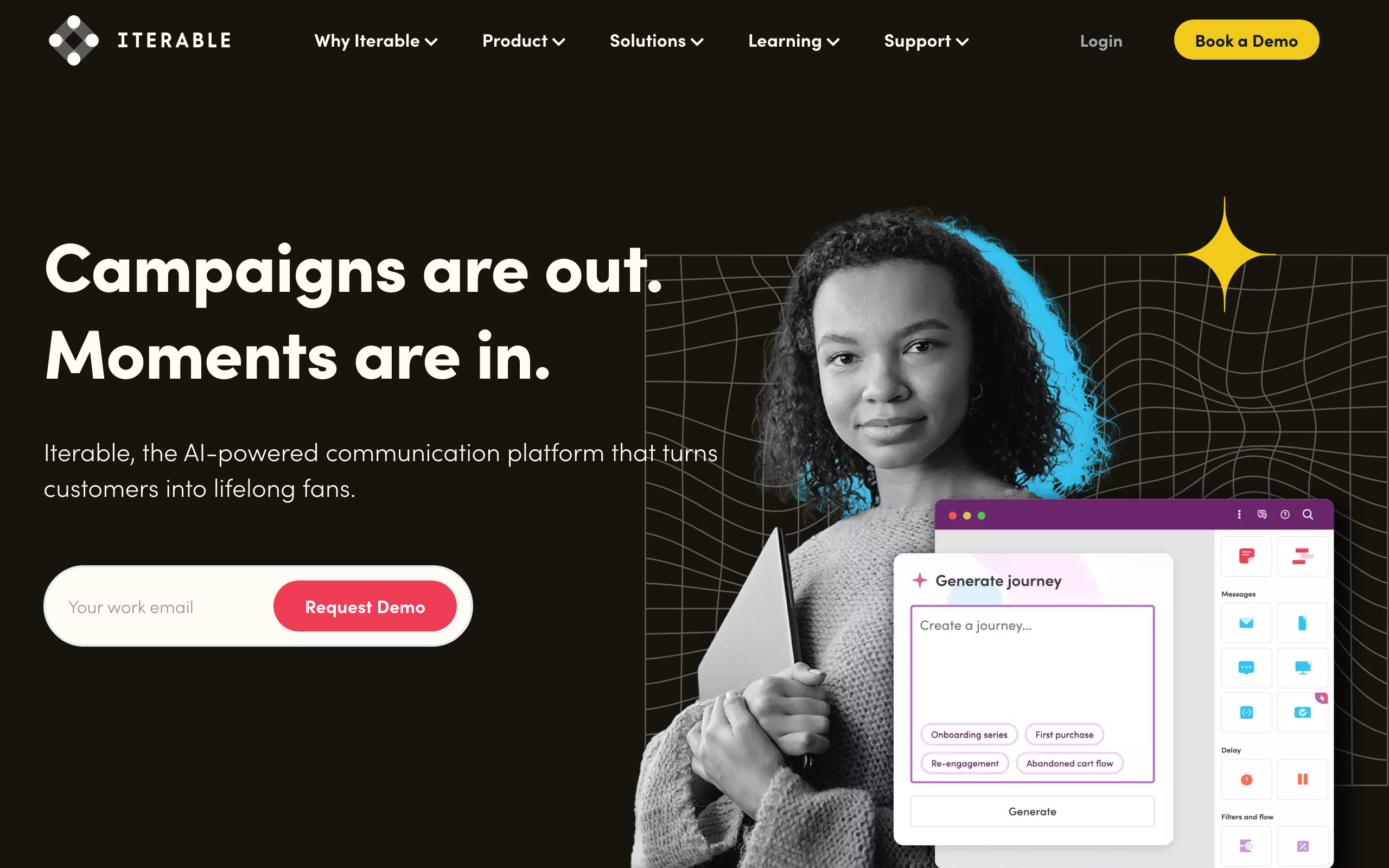
Iterable's Studio is a visual workflow builder designed for cross-channel messaging. Build flows that include email, push, SMS, in-app, and web push steps. The builder supports branching based on user events, properties, and message engagement.
Studio's "hold until" feature lets you pause a workflow until a specific event occurs or a condition is met. Combined with cross-channel capabilities, you can build flows like "send email, wait for open, if no open in 24 hours send push notification, wait for click, if clicked send follow-up email."
The cross-channel fallback pattern is where Iterable's visual builder excels. You can see the entire multi-channel sequence laid out: primary message via email, fallback via push if no engagement, second fallback via SMS for urgent messages. The visual representation makes it clear which users go down which channel path, and the analytics show you which channels perform best for each message type.
Builder quality: Good. Cross-channel focus, hold-until conditions, visual and approachable Pricing: Custom (typically $500+/month) Pros: Cross-channel, hold-until, growth-focused, visual workflow with analytics Cons: Custom pricing, learning curve, mid-market positioning
6. Klaviyo
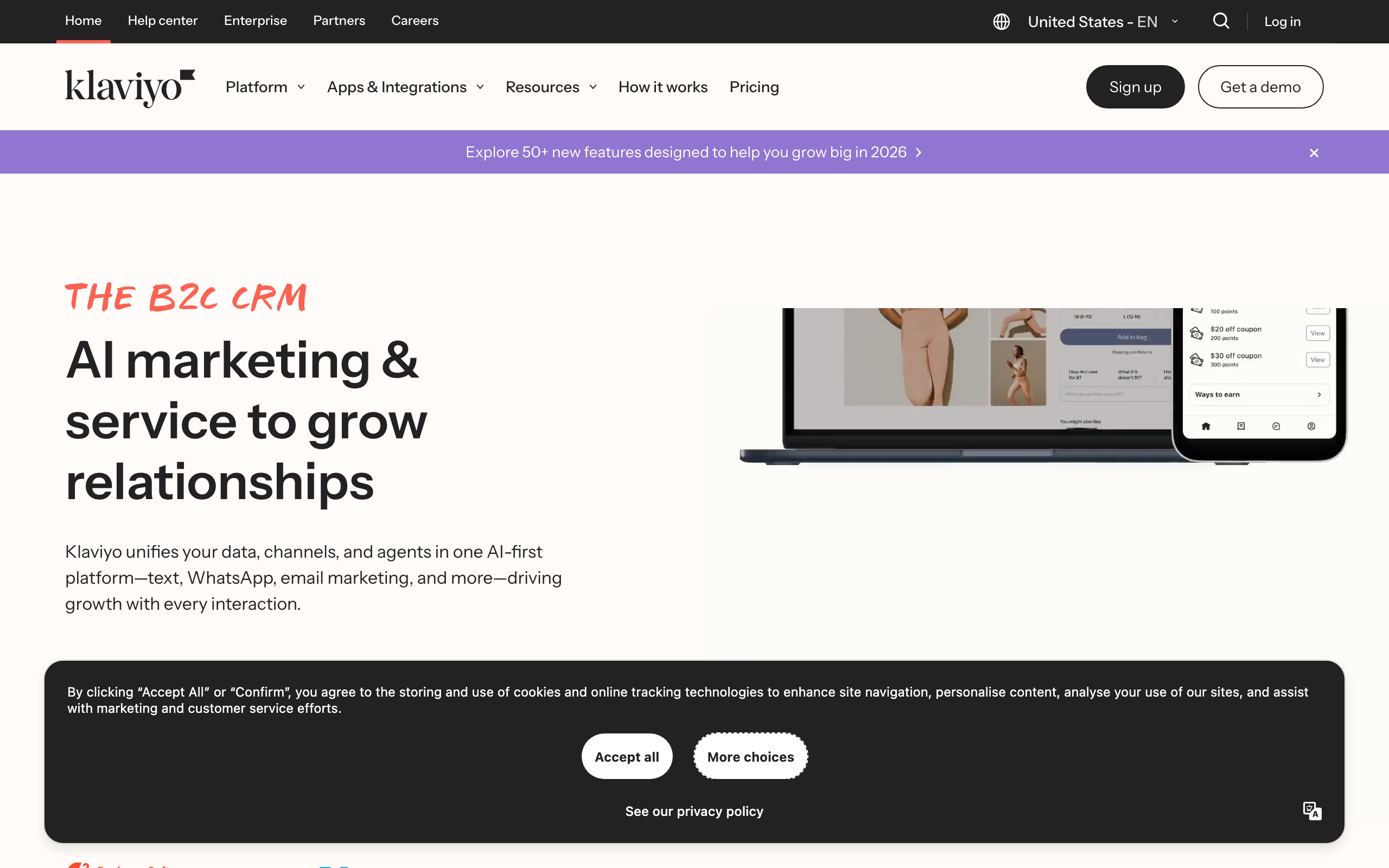
Best for: E-commerce visual workflows with revenue tracking
Klaviyo's Flow builder is a visual workflow builder optimized for e-commerce. Triggers include Shopify events (abandoned cart, placed order, fulfilled order), and the builder supports branching by customer properties, order history, and predicted behavior.
Each flow step shows revenue attribution, so you can see how much money each email in the flow generates. For e-commerce, this direct connection between workflow steps and revenue is extremely valuable. The builder is intuitive for marketing teams, with pre-built flows for common e-commerce scenarios.
The revenue-per-step metric is what makes Klaviyo's flow builder unique. Every email node in the workflow shows how much revenue it generated. This makes optimization obvious: if email 3 in your abandoned cart flow generates $0, you know it needs work. If email 1 generates 70% of the revenue, you know it's doing the heavy lifting. This data-driven view of workflow performance is something other builders show only in external analytics tools.
The pre-built flows are comprehensive for e-commerce: abandoned cart, browse abandonment, post-purchase, win-back, price drop alert, back-in-stock notification, and birthday sequences all come ready to customize. For SaaS, the pre-built flows are less useful, but the builder itself works for any workflow type.
Builder quality: Very good for e-commerce. Revenue attribution per step, pre-built flows, intuitive Pricing: Free up to 250 contacts, from $20/month Pros: Revenue tracking per step, e-commerce-optimized, pre-built flows, intuitive Cons: E-commerce-centric, limited SaaS triggers, pricing scales with contacts
7. Mailchimp
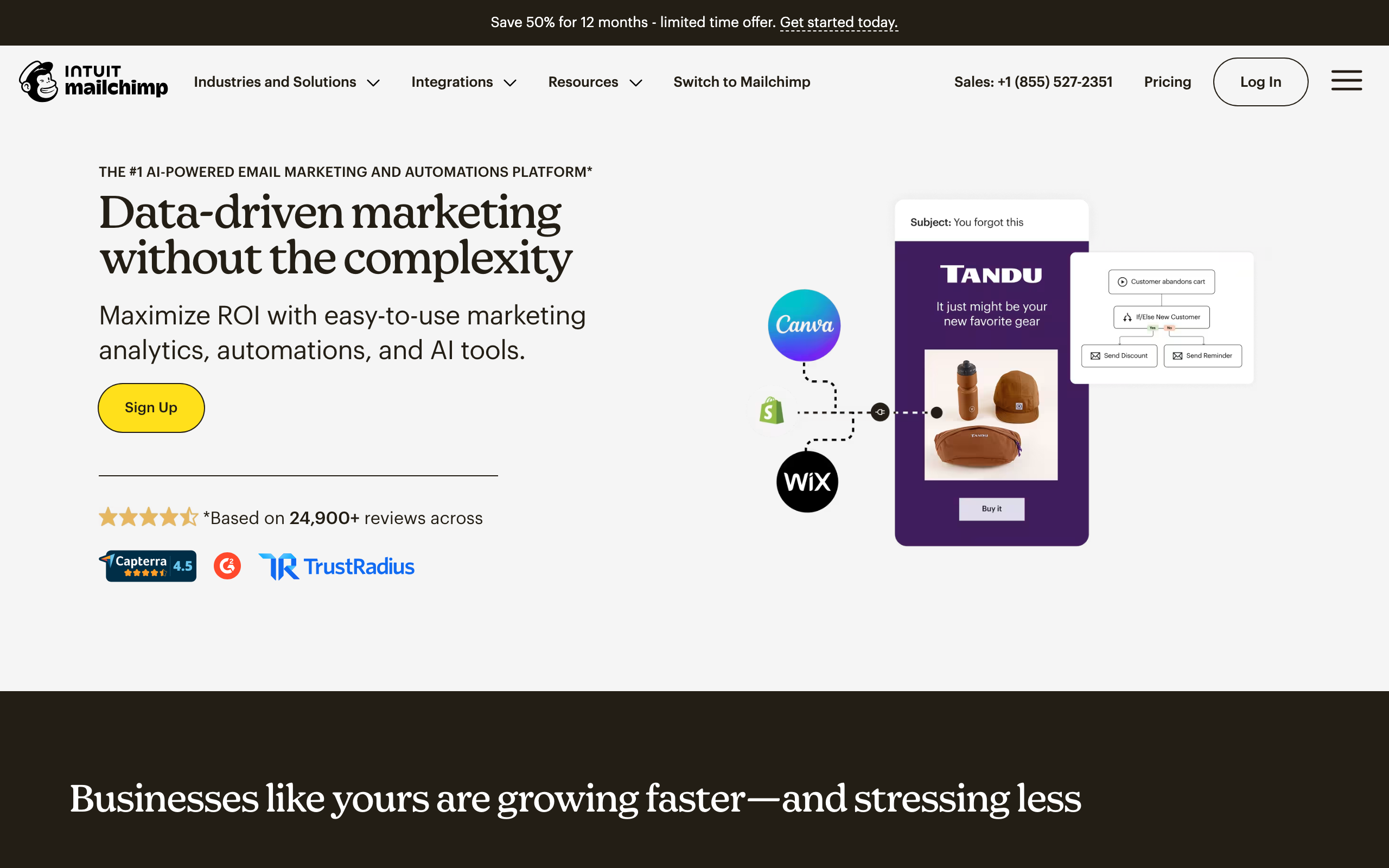
Best for: Simple visual automations for small teams
Mailchimp's Customer Journey builder is a visual workflow tool for building multi-step automations. You can add triggers, email steps, if/else branches, and delays. The builder is straightforward and accessible for non-technical users.
The limitation is depth. Mailchimp's builder supports basic branching but doesn't handle complex multi-condition logic, event-based triggers (beyond basic engagement), or cross-channel steps. For simple workflows (welcome series, abandoned cart, birthday emails), it works fine. For anything complex, you'll hit limitations quickly.
For small teams or non-SaaS businesses, Mailchimp's builder has one major advantage: familiarity. Most marketers have used Mailchimp at some point, which means the learning curve is minimal. You can build a welcome series, a re-engagement workflow, and a post-purchase follow-up in an afternoon without reading documentation. The builder is intuitive to the point where it's almost self-explanatory.
The free tier also makes it accessible for experimentation. You can try visual workflow building with real subscribers before committing to a more powerful (and expensive) tool. Many teams start with Mailchimp's builder and graduate to ActiveCampaign or Customer.io as their needs grow.
Builder quality: Basic. Accessible but limited, good for simple workflows Pricing: Free up to 500 contacts, from $13/month Pros: Easy to use, accessible for beginners, good for simple workflows, familiar interface Cons: Limited branching, basic triggers, no event-based automation, depth limitations
8. HubSpot
Best for: CRM-driven visual workflow automation
HubSpot's workflow builder is a robust visual automation tool that draws on the full CRM data model. Triggers include contact property changes, form submissions, deal stage changes, and lifecycle stage updates. Branching conditions can reference any CRM property, custom field, or engagement data.
The enrollment criteria and re-enrollment settings give HubSpot's workflows precise control over who enters and when. A workflow can be configured to run once per contact, re-enroll when conditions change, or continuously re-evaluate in real time. For marketing teams that need to automate both marketing and sales hand-offs, this flexibility is essential.
The visual canvas is clean and readable. Long workflows don't become a tangle because HubSpot's layout algorithm keeps branches organized. A "Go to action" step lets you redirect contacts to any step in the workflow, enabling loops and conditional re-entry patterns without spaghetti connections.
Builder quality: Very good. CRM-driven, clean canvas, enrollment control, scalable Pricing: Free CRM, Marketing Hub from $20/month, advanced workflows on paid tiers Pros: Full CRM context, clean canvas, enrollment precision, deal stage integration Cons: Advanced workflow steps gated by tier, pricing escalates, complex permissions
9. GetResponse
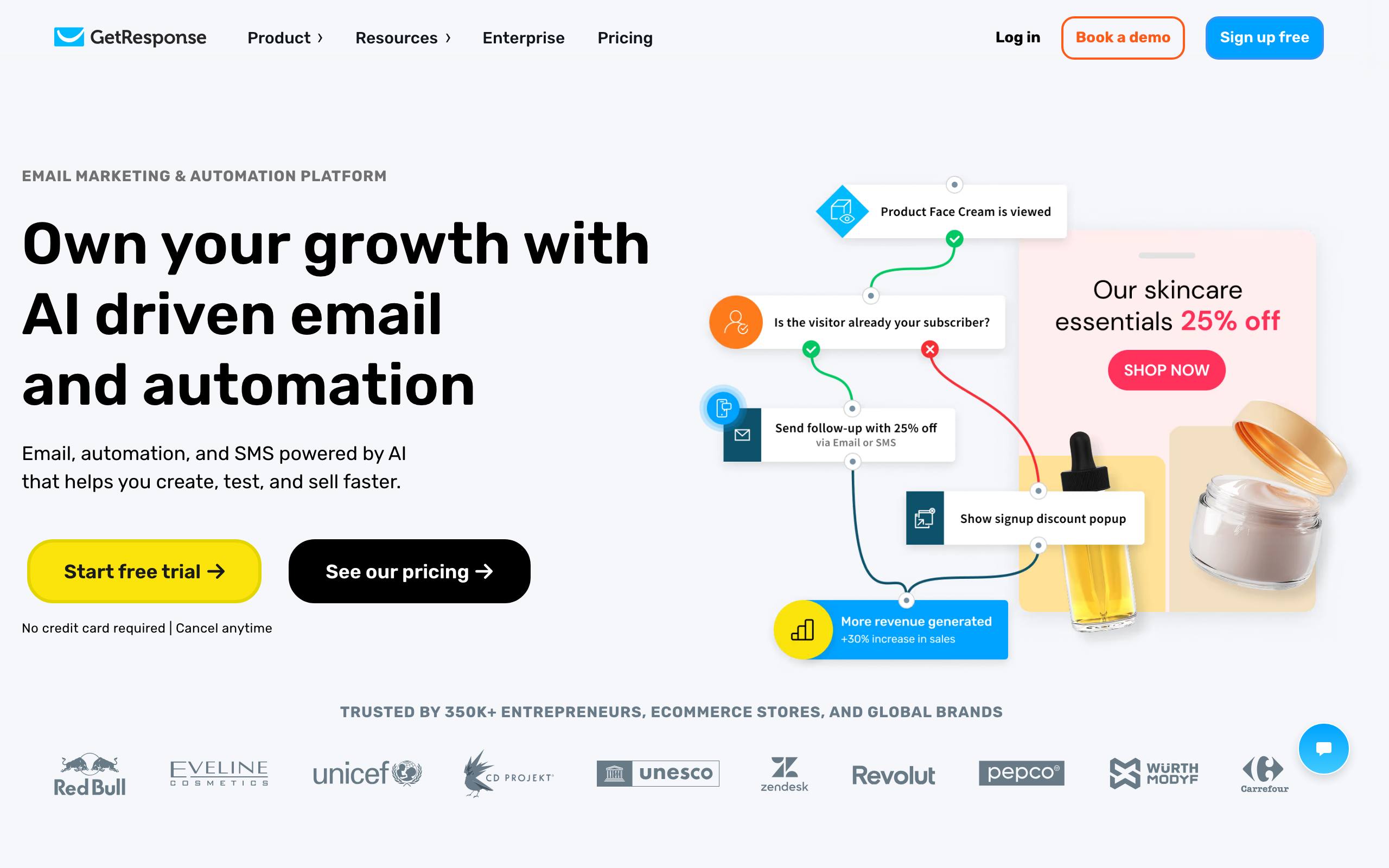
Best for: Webinar-integrated visual workflow building
GetResponse's Marketing Automation builder is a drag-and-drop canvas that includes webinar-specific triggers and actions alongside standard email automation. Build workflows where a webinar registration triggers a pre-event email sequence, attendance triggers a post-event follow-up, and no-shows receive a recording email.
The condition library covers email engagement, contact properties, tag changes, and purchasing behavior. For most marketing use cases, the available conditions are sufficient. The "filter" condition type is particularly useful: it evaluates multiple criteria in a single step and routes contacts to different branches based on the combined result.
Scoring nodes in the workflow accumulate lead scores based on actions taken within the flow. When a contact reaches a score threshold, they can be routed to a high-priority follow-up branch. This in-workflow scoring keeps lead management inside the visual flow rather than requiring a separate scoring module.
Builder quality: Good. Webinar-aware, scoring, condition library, visual canvas Pricing: From $19/month Pros: Webinar-native triggers, in-workflow scoring, condition library, decent drag-and-drop Cons: Interface feels dated, fewer integrations than top-tier platforms, not best-in-class
10. Drip
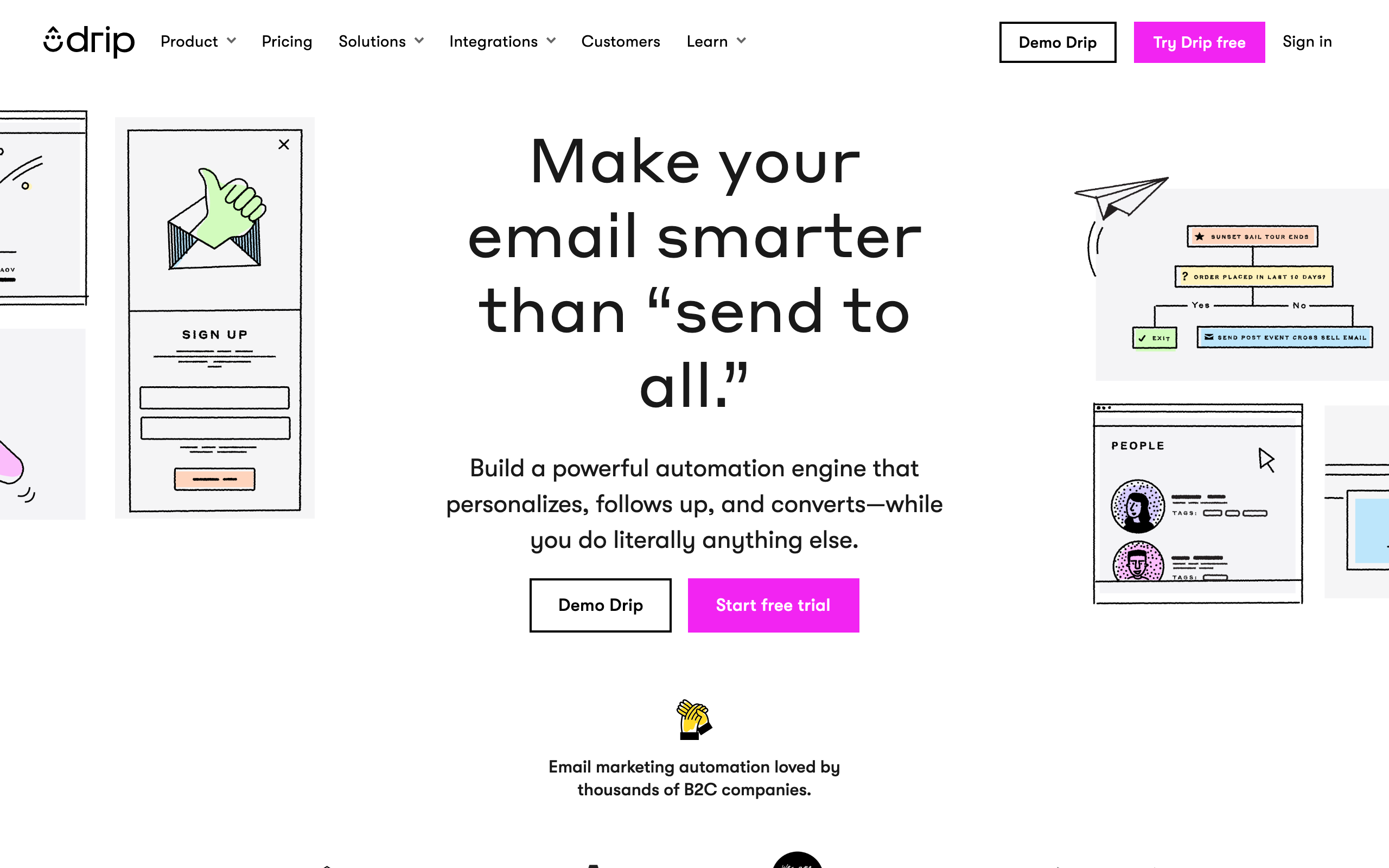
Best for: E-commerce workflow automation with purchase triggers
Drip's visual workflow builder is designed for e-commerce use cases. Triggers include Shopify/WooCommerce purchase events, cart abandonment, browse abandonment, and order fulfillment. The drag-and-drop canvas supports branching conditions based on purchase history, order value, and product categories alongside standard email engagement.
The decision node in Drip is flexible. You can build multi-way branches where a contact is routed to different paths based on tag combinations, order count thresholds, or custom field values. For e-commerce brands with multiple customer segments (first-time buyers vs. repeat customers vs. VIP), this enables targeted flows that treat each segment differently.
The workflow analytics show contact counts at each step and conversion rates between steps. For high-revenue e-commerce brands, seeing which step in the post-purchase flow generates the most repeat purchases drives meaningful optimization.
Builder quality: Good. E-commerce-optimized triggers, decision nodes, workflow analytics Pricing: From $39/month for 2,500 contacts Pros: E-commerce-native triggers, multi-way branches, workflow analytics, clean interface Cons: E-commerce-shaped, SaaS use requires workarounds, pricing escalates with contacts
11. Omnisend
Best for: E-commerce multi-channel workflow automation
Omnisend's automation builder is a visual canvas that handles email, SMS, and push notification steps in a single workflow. Build an abandoned cart flow that starts with email, adds an SMS follow-up for non-openers, and sends a push notification as a final reminder. The multi-channel approach is seamlessly integrated in the drag-and-drop interface.
Pre-built automation templates cover common e-commerce scenarios. The abandoned cart, welcome series, post-purchase, and win-back templates are ready to activate with minimal customization. For teams that want professional e-commerce automation without building from scratch, the template library accelerates deployment.
Split testing within workflows lets you test different email variants at specific steps. The workflow shows which variant performs better and automatically routes future contacts to the winning version. This in-workflow optimization removes the manual effort of external A/B testing analysis.
Builder quality: Good. Multi-channel in one canvas, pre-built templates, split testing, e-commerce-focused Pricing: From $16/month Pros: Email + SMS + push in one workflow, pre-built templates, split testing, intuitive for e-commerce Cons: E-commerce-shaped, limited for SaaS lifecycle, SMS costs extra
12. Encharge
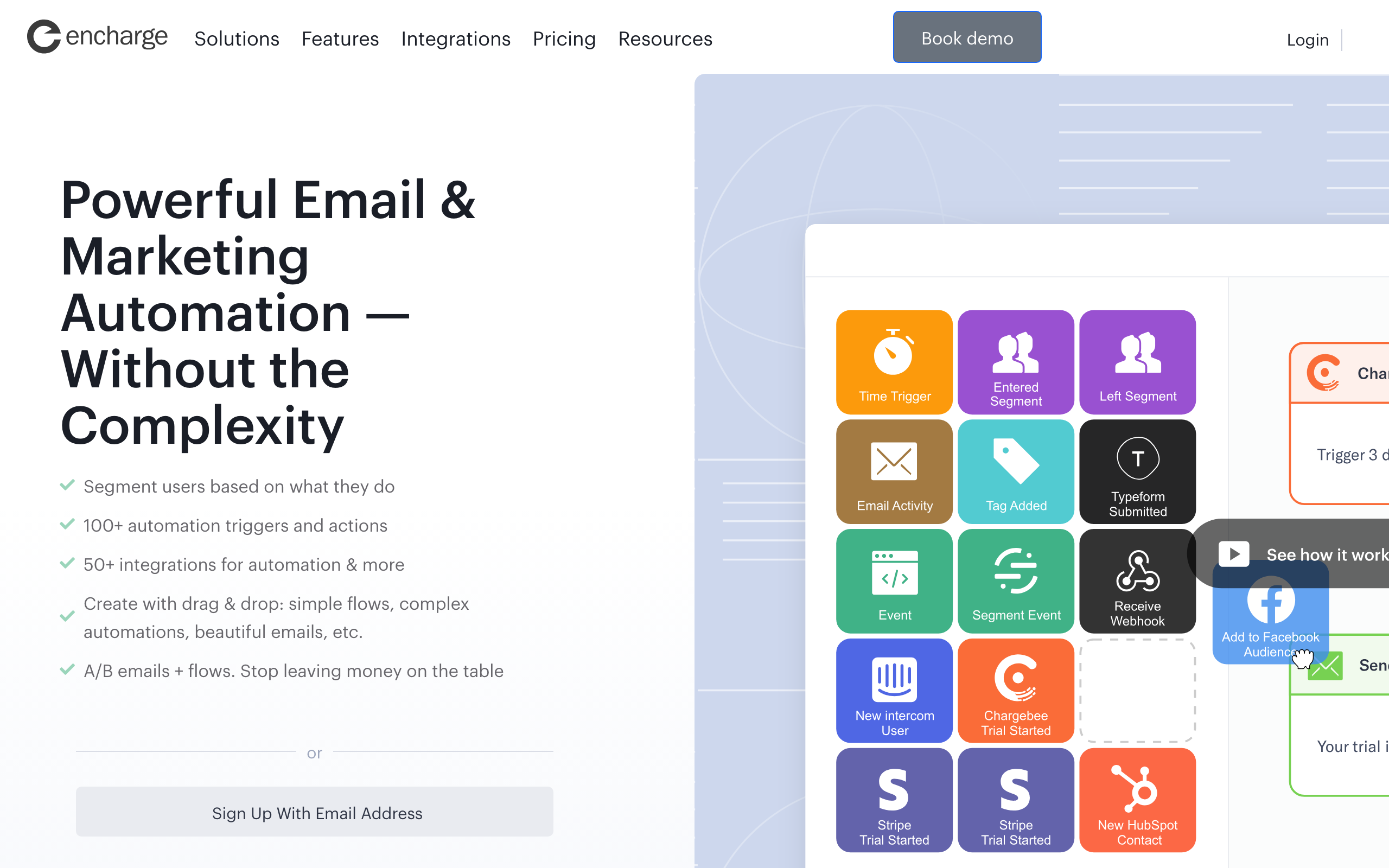
Best for: Visual flow-based automation for non-technical SaaS teams
Encharge's flow builder is a drag-and-drop canvas designed for SaaS use cases. Triggers include Stripe events (subscription started, payment failed, trial ending), HubSpot CRM events, and custom API events. Non-technical founders can build sophisticated lifecycle flows without writing code.
The action steps in Encharge go beyond sending email. You can add Slack notifications, update HubSpot deal stages, trigger webhooks, and add contacts to external tools directly from the canvas. For SaaS teams using multiple tools, this means lifecycle automation doesn't require Zapier as a middleware layer.
The broadcast integration is a unique feature. You can trigger a broadcast (one-time campaign) from within an automation flow based on a condition. When a user completes a milestone, they receive a personalized campaign email as part of the automated journey - the distinction between campaigns and automations dissolves usefully.
Builder quality: Good. SaaS-focused, multi-tool action steps, Stripe-native, visual and approachable Pricing: From $79/month Pros: SaaS-native triggers, multi-tool actions, Stripe-native, approachable for non-technical users Cons: Mid-range pricing, smaller community, basic email editor
13. Moosend
Best for: Affordable drag-and-drop workflow building
Moosend's automation builder offers a visual canvas at a price point significantly lower than most competitors. Drag and drop triggers, email steps, delays, and conditional branches. The builder covers standard e-commerce and marketing automation use cases with AND/OR branching conditions.
The trigger library covers the usual options: subscription events, email engagement, purchase triggers, and date-based rules. The action library is similarly complete: send email, update subscriber, add/remove tag, notify via webhook. For most small-to-mid-sized businesses, the available triggers and actions cover every real scenario.
The workflow templates are a useful starting point. Pre-built automations for welcome sequences, cart recovery, and re-engagement cover the highest-ROI use cases. Activate a template, customize the emails, and the workflow is live in under an hour.
Builder quality: Good. Affordable, visual canvas, covers standard use cases Pricing: From $7/month Pros: Very affordable, visual canvas, templates, standard triggers and actions Cons: Fewer integrations than major platforms, automation less powerful than Customer.io
14. Ortto
Best for: CDP-integrated journey building with cross-channel steps
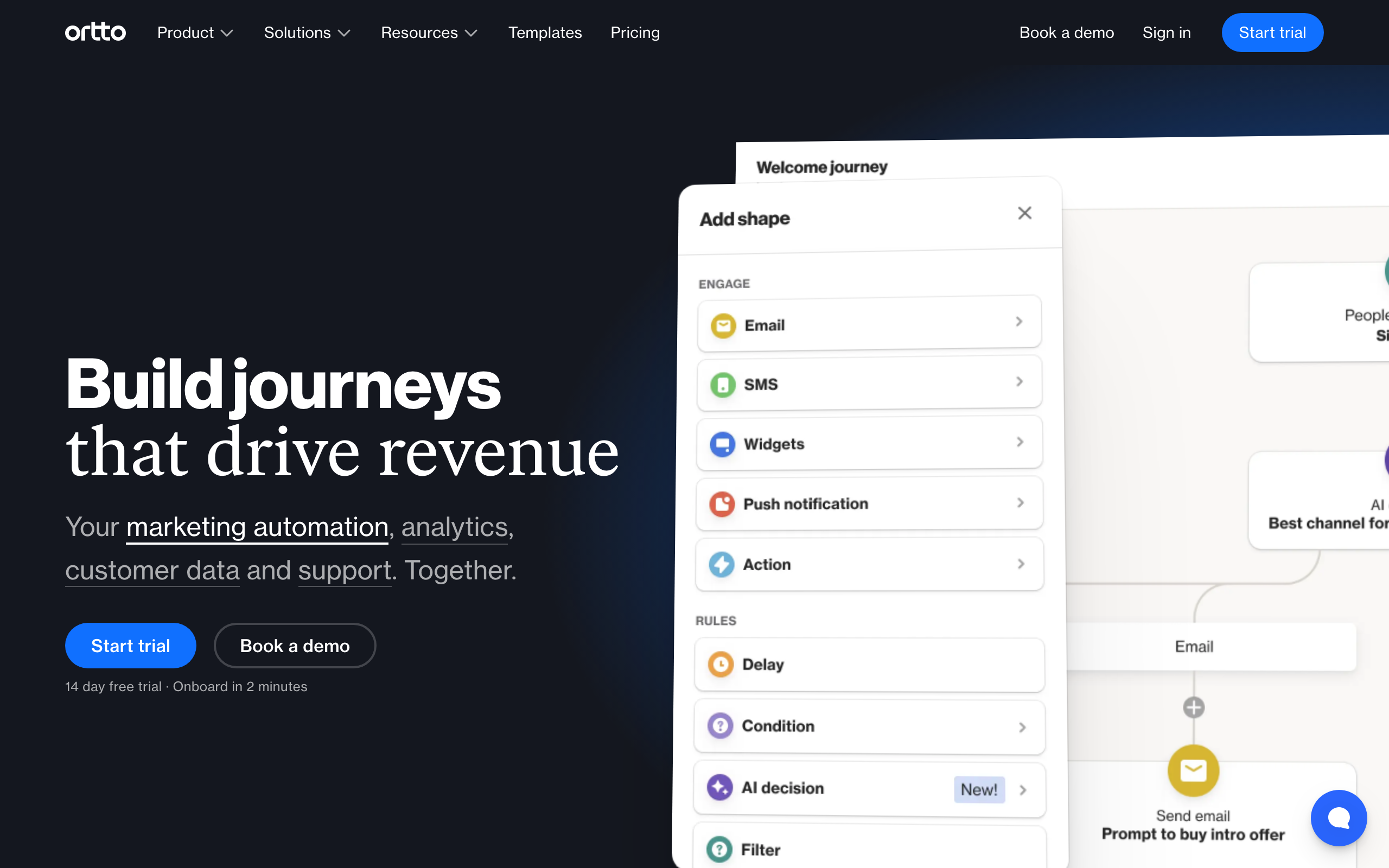
Ortto's journey builder is a visual canvas that combines customer data platform attributes with cross-channel messaging (email, SMS, push, in-app). Build journeys that trigger based on rich CDP data, branch on customer segment membership, and deliver personalized content across channels.
The "smart segments" integration is a standout. Segments in Ortto auto-update based on behavioral and attribute data from the CDP. When a contact's segment membership changes, their journey path adjusts in real time. This dynamic branching based on evolving data is more sophisticated than static if/else branching.
Activity analytics at each journey step show not just counts but revenue attribution, making it possible to assess the financial impact of individual journey branches. For marketing teams accountable to revenue metrics, this visibility is valuable.
Builder quality: Very good. CDP-integrated, cross-channel, dynamic segments, revenue analytics Pricing: From $599/month for the tiers where the builder is fully useful Pros: CDP integration, dynamic segment branching, multi-channel, revenue analytics Cons: Expensive, complex onboarding, overkill for small teams
15. Campaign Monitor
Best for: Clean visual journey builder for design-focused teams
Campaign Monitor's Journey Designer is a clean, aesthetically polished visual workflow builder. The canvas is easy to read, and the journey steps are clearly labeled. Triggers include form submissions, links clicked, email engagement, and subscriber field updates.
The visual clarity is the primary advantage. Complex journeys with multiple branches remain readable in Campaign Monitor's designer. For teams that care about being able to quickly audit "what happens if..." scenarios, the clean layout makes tracing paths intuitive.
The analytics panel shows contact counts, open rates, and click rates for each email step within the journey, giving a step-level view of performance without leaving the builder. For non-data-science teams who need quick insights, this integrated analytics view reduces the effort of journey optimization.
Builder quality: Good. Clean and readable, polished UI, integrated analytics Pricing: From $11/month Pros: Very readable canvas, polished UI, integrated step analytics, approachable for non-technical Cons: Fewer trigger options than event-driven tools, no native e-commerce event tracking
16. Dotdigital
Best for: B2B and e-commerce multi-channel program building
Dotdigital's program builder is an enterprise-grade visual workflow canvas that handles email, SMS, push, and social retargeting steps in a single flow. The decision node supports complex conditions, including RFM scores, custom contact data, and real-time engagement data from any channel.
The "wait until engagement" step pauses the journey until a contact takes a specific action within a time window. If the contact doesn't act, the journey branches to a fallback path. This dynamic waiting pattern produces more responsive automations than fixed-delay sequences.
CRM sync with Salesforce and Magento means journey conditions can reference opportunity stage, order history, and customer tier data from external systems. B2B marketers can build journeys that respond to sales activity without manual segment management.
Builder quality: Very good. Multi-channel, dynamic waiting, CRM-enriched conditions Pricing: Custom (typically $500+/mo) Pros: Multi-channel in one canvas, RFM conditions, CRM-enriched branching, enterprise-grade Cons: Enterprise pricing, complex implementation, dated UI in places
17. Act-On
Best for: B2B demand generation program builder
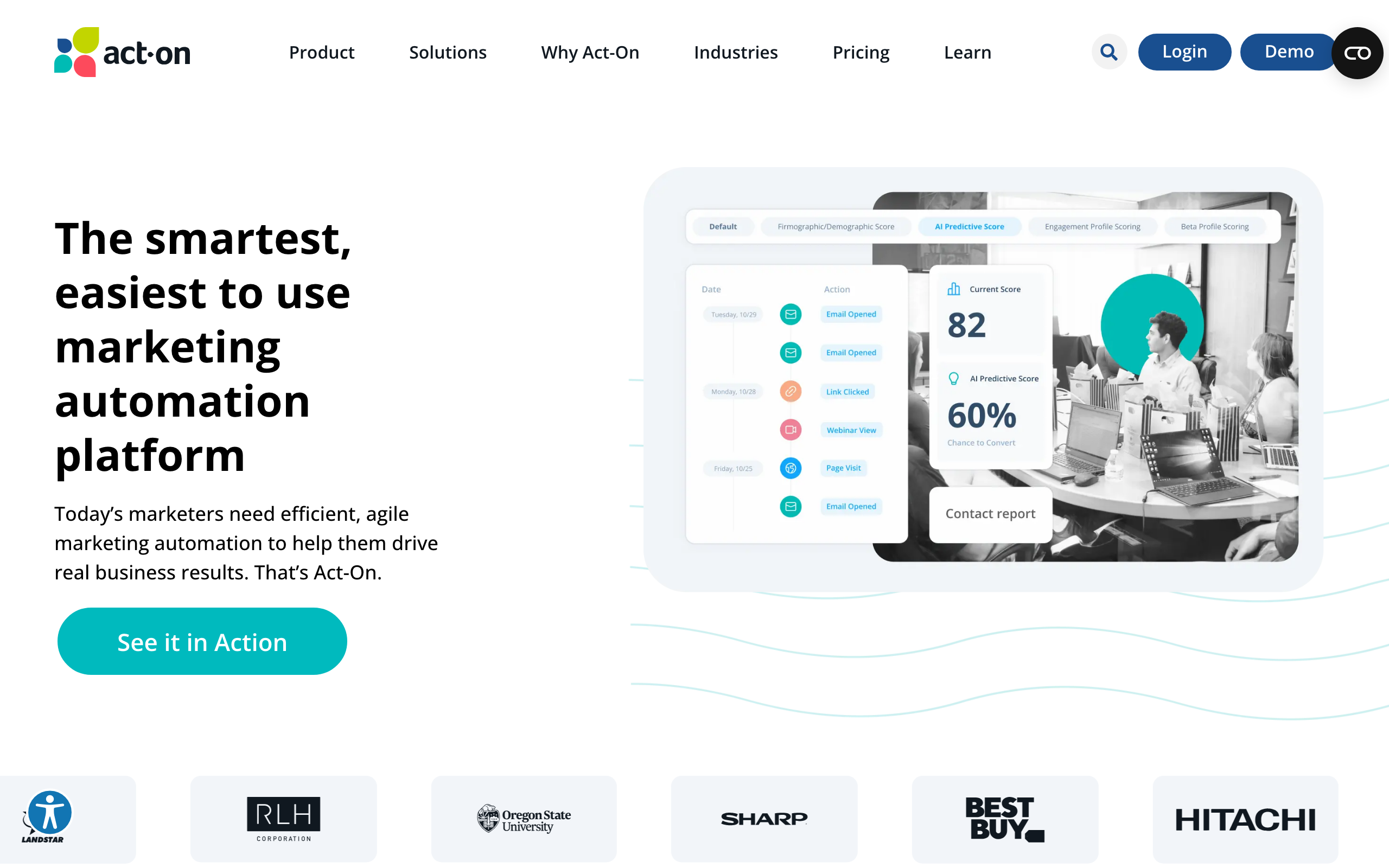
Act-On's Automated Journey builder is a visual workflow tool designed for B2B demand generation. Triggers include form submissions, landing page visits, email engagement, and CRM activity. The builder supports branching based on lead score thresholds, company attributes, and Salesforce CRM data.
The program library includes pre-built B2B templates: trade show follow-up, content download nurture, MQL to SQL handoff, and renewal sequences. For B2B marketing teams who run campaigns to these standard scenarios, the templates reduce the design effort significantly.
Scoring integration within the builder is tight. As contacts move through a program, scoring rules run in parallel. When a contact crosses the MQL threshold mid-journey, they can be routed to a sales-ready branch without waiting for the next evaluation cycle. This real-time score-to-branch connection is cleaner than in most generic automation tools.
Builder quality: Good for B2B. Scoring integration, CRM-aware branching, B2B templates Pricing: Custom (typically $900+/mo) Pros: B2B templates, real-time scoring integration, CRM-aware, demand gen focused Cons: Expensive, dated UI, less polished than newer tools
18. Marketo
Best for: Enterprise engagement programs with multi-touch attribution
Marketo Engage's Smart Campaigns with Engagement Programs is the enterprise standard for B2B email automation. Engagement Programs create a stream-based content delivery system: contacts flow through content streams, and the program tracks which content each person has received and how they engaged.
The visual canvas in Marketo's Engagement Programs shows content streams with branching tracks. Contacts receive the next relevant piece of content based on their engagement history and attributes, rather than following a fixed timeline. This adaptive content delivery is unique to Marketo among workflow builders.
The attribution integration feeds engagement program data directly into Revenue Explorer, showing which program streams generate the most pipeline contribution. For enterprise B2B teams that need to justify email investment by pipeline data, this attribution layer connects automation to revenue in a way that most visual builders don't.
Builder quality: Very good for enterprise B2B. Adaptive content streams, multi-touch attribution, enterprise scale Pricing: Custom (typically $3,000+/mo) Pros: Adaptive content delivery, multi-touch attribution, enterprise scale, Revenue Explorer Cons: Expensive, steep learning curve, requires dedicated Marketo admin, complex UI
19. Pardot
Best for: Salesforce-native engagement programs
Pardot's Engagement Studio is a visual workflow builder that draws on Salesforce CRM data for every trigger and branching condition. Because Pardot and Salesforce share the same data, Engagement Studio conditions reference opportunity stage, account attributes, and custom Salesforce objects in real time without any sync delay.
The visual canvas in Engagement Studio is clean and Salesforce-branded. Steps include: send email, send list email, notify assigned user, create task, add to Salesforce campaign, update field, and trigger action. For sales-led B2B teams that want marketing automation to coordinate with Salesforce activities, the native integration is the primary advantage.
Completion actions (triggered when a prospect completes a specific action) can update Salesforce records directly from the visual flow. When a prospect clicks a pricing page link in email 3 of the nurture, the completion action creates a Salesforce task for the assigned rep. The visual flow shows this coordination clearly.
Builder quality: Good. Salesforce-native, completion actions, visual canvas, CRM coordination Pricing: From $1,250/month Pros: Salesforce-native, real-time CRM data, completion actions, no sync overhead Cons: Expensive, requires Salesforce, limited outside Salesforce ecosystem, UI less modern
20. MailerLite
Best for: Simple newsletter automation with a visual builder
MailerLite's automation builder is a visual canvas for building simple multi-step sequences. Triggers include form submissions, subscriber field changes, campaign engagement, and date-based rules. The builder supports basic if/else branching based on engagement and field values.
For solo founders and small newsletter creators who want something more than a linear sequence but less complex than a full workflow tool, MailerLite's builder is the right fit. The interface is pleasant to use, the step library covers the essentials, and the analytics panel shows open and click rates at each step.
The free tier includes access to automation (limited to one trigger), making it one of the few tools where you can build and test a workflow without paying first. For startups validating whether automation is worth investing in, this free access reduces the evaluation risk.
Builder quality: Basic. Clean interface, standard triggers, limited branching depth Pricing: Free up to 1,000 subscribers, from $10/month Pros: Pleasant interface, accessible automation, free tier, simple and clear Cons: Limited branching, basic triggers, not event-driven, depth limitations
21. Drip (Advanced)
Best for: E-commerce-led SaaS workflows with detailed analytics
Drip's workflow builder includes an "analytics mode" that overlays performance data on the visual canvas. Each step shows contact count, open rate, click rate, and conversion rate, making it easy to identify which steps need optimization without switching to a separate analytics view.
The "action" step library in Drip includes a Shopify action set: add a tag, update customer metafield, grant loyalty points, and other platform-specific actions that no generic automation tool can match. For Shopify merchants, these native actions create a tighter loop between email behavior and platform data.
The workflow testing tool lets you simulate a contact moving through the workflow step-by-step, previewing which path they'd take based on their current attributes and history. Before going live, you can verify that the logic routes contacts correctly for every defined scenario.
Builder quality: Good. Analytics overlay, Shopify actions, simulation testing Pricing: From $39/month for 2,500 contacts Pros: Analytics overlay on canvas, Shopify native actions, simulation testing, readable UI Cons: E-commerce-centric, SaaS use requires adaptation, pricing scales with contacts
Visual Builder vs. Code-Based Automation
When Visual Builders Win
- Team collaboration: Non-technical team members can understand and contribute to workflow design
- Complex branching: Seeing all paths visually prevents logic errors
- Debugging: Visual flow shows exactly where users are and where they drop off
- Iteration: Moving steps around is faster than rewriting code
- Onboarding new team members: A visual workflow is self-documenting in a way that code isn't
When Code-Based Wins
- Simple sequences: Linear email sequences don't need a visual builder
- Dynamic logic: Complex business rules are sometimes easier to express in code
- Version control: Code-based automations can live in Git
- Scale: Very high-throughput automations sometimes perform better when code-defined
- API-first teams: Developer-friendly tools with API-driven automation may prefer code
The Practical Answer
Most teams use visual builders for marketing automations (where collaboration and visualization matter) and code/API approaches for transactional triggers (where developer control and reliability matter). Many developer-friendly email tools offer both approaches.
How to Choose
You need the most powerful visual builder: Customer.io. The most flexible canvas with every trigger and condition type.
You want intuitive building with CRM: ActiveCampaign. Good balance of power and usability.
You're enterprise with multi-channel: Braze. Canvas builder at enterprise scale.
You're a growth team wanting cross-channel: Iterable. Studio with hold-until and multi-channel.
You're SaaS and prefer simplicity: Sequenzy. Sequence-based automation without canvas complexity.
You're e-commerce: Klaviyo. Flow builder with revenue tracking per step.
You want basic, accessible automation: Mailchimp or MailerLite. Simple visual builders for straightforward workflows.
Common Workflow Builder Mistakes
Building everything at once. Don't try to create a 20-step lifecycle workflow on day one. Start with a simple 3-5 email sequence, validate it works, and add complexity incrementally.
Neglecting exit conditions. Every workflow needs clear exit conditions. Without them, users accumulate in workflows indefinitely, receiving outdated or irrelevant emails.
Over-branching. Just because you can create 8 branches doesn't mean you should. Each branch needs enough volume to be statistically meaningful and enough differentiation to justify the separate path.
Ignoring the analytics. Most visual builders show step-by-step analytics. Use them. If 80% of users exit at step 3, investigate why. If one branch converts at 2x the other, learn from it.
Not testing the full path. Send yourself through every path in the workflow before going live. Check every email, verify every branch condition, and confirm every exit condition works.
FAQ
Do I need a visual workflow builder? For sequences with 3+ emails and any branching logic, yes. Visual builders prevent "automation spaghetti" where complex logic becomes impossible to understand. For simple 2-3 email linear sequences, you can skip it.
Can I build the same automations with code instead? Yes. Any visual workflow can be replicated with code and API calls. The visual builder is a design interface, not a capability gatekeeper. Some platforms (Customer.io, Sequenzy) support both approaches.
How many active workflows should I run? Start with 3-5 core workflows (welcome, onboarding, trial conversion, churn prevention, re-engagement). Add more as you validate the initial ones. Too many workflows risk conflicting messages and subscriber fatigue. For guidance on which workflows to prioritize, check our guide on SaaS lifecycle emails.
What's the biggest mistake people make with workflow builders? Over-engineering. Building a 15-step workflow with 8 branches before testing a simple 3-email sequence. Start simple, measure, and add complexity only where the data shows you need it.
How do I prevent workflows from conflicting with each other? Use priority rules, segment exclusions, and frequency caps. Most visual builders support these. The key principle: a subscriber should never receive contradictory messages from two different workflows at the same time. Defining clear lifecycle stages and ensuring each subscriber is in only one stage at a time helps prevent conflicts.
Can I A/B test inside a visual workflow? Most visual builders support random split nodes that route users to different paths. This lets you test different email copy, timing, or entire workflow branches. Customer.io, ActiveCampaign, Braze, and Iterable all support in-workflow A/B testing.
How do I migrate from one workflow builder to another? The hardest part is recreating the workflow logic, not moving the subscriber data. Document your current workflows thoroughly (screenshots of the visual builder help), export your subscriber data, and rebuild the workflows in the new tool. Plan for a transition period where both tools are running, with clear cutover dates for each workflow.
Should I use the same tool for simple and complex workflows? Not necessarily. Some teams use a simple tool (Sequenzy, Loops) for straightforward lifecycle sequences and a more powerful tool (Customer.io) for complex multi-path workflows. But maintaining two email tools adds overhead, so consolidating into one tool that handles both is usually preferable if possible.